Mac desktop customization apps each change one layer of macOS: the wallpaper, the menu bar, window layout, icons or, in FoldMyMac's case, how the desktop moves. Most of them work through permissions you grant in System Settings, not by editing the system itself. If you only want a quick pick: Plash for a web page as wallpaper, Ice for a tidier menu bar, Rectangle for window snapping, and FoldMyMac for a desktop that bends with the lid.
Categories of Mac customization
"Customizing a Mac" covers very different things, and most apps only do one of them. Knowing the category first makes it easier to choose.
- Wallpaper and live wallpaper: what sits behind your windows, from still images to a web page rendered as a background.
- Menu bar: which icons show, how they are grouped and how the bar looks.
- Window management: snapping, tiling and resizing windows with shortcuts or screen edges.
- Icons and themes: custom app icons, folder colors and overall look.
- Widgets: small glanceable panels on the desktop or in a side view.
- Motion effects: animations that make the desktop itself move or react.
The last category is the least crowded. Most "mac aesthetic apps" change how the desktop looks while it sits still. Motion apps change what it does.
Mac customization apps by category
The entries below were checked against each vendor's own page when this article was written. Features and licensing change, so confirm on the vendor site before you install. This is not a ranking and it is not a complete list.
Wallpaper and live wallpaper tools
Plash turns a website into your desktop wallpaper. Its developer, Sindre Sorhus, lists it on the App Store as a free download, and its source code is no longer public. Its current version requires macOS 26 or later, and older releases are available for earlier macOS versions, so check which one fits your Mac. It suits dashboards, clocks or animated web pages that you want behind everything else.
If you do not need anything live, the built-in Wallpaper pane in System Settings is the baseline, and it costs nothing.
Menu bar styling tools
Ice is a menu bar manager. It hides and shows menu bar items, adjusts the bar's appearance and supports hotkeys. It is open source under the GPL-3.0 licence, free to download, and requires macOS 14 or later. You can install it from GitHub releases or with Homebrew.
Ice is also a good example of why you should read the permissions list for any menu bar app. Tools that rearrange other apps' icons generally need to see the menu bar, so expect a privacy prompt.
Window and dock tweaks
Rectangle moves and resizes windows using keyboard shortcuts or snap areas at the screen edges. It has a free, open-source version and a paid Pro tier that adds features such as custom shortcuts and faster snapping. The vendor lists macOS 10.15 and newer, on both Intel and Apple silicon Macs.
Motion and effects: FoldMyMac
FoldMyMac is a macOS menu-bar app that bends and blurs your desktop as you close the MacBook lid. It reads the hinge angle from the built-in lid-angle sensor, so the effect follows the real position of the lid instead of a timer. It renders the fold in real time with Metal and offers three looks, Silk, Shade and Frost, plus sliders for perspective, blur and shadow. You also choose the lid angle at which the desktop clears.
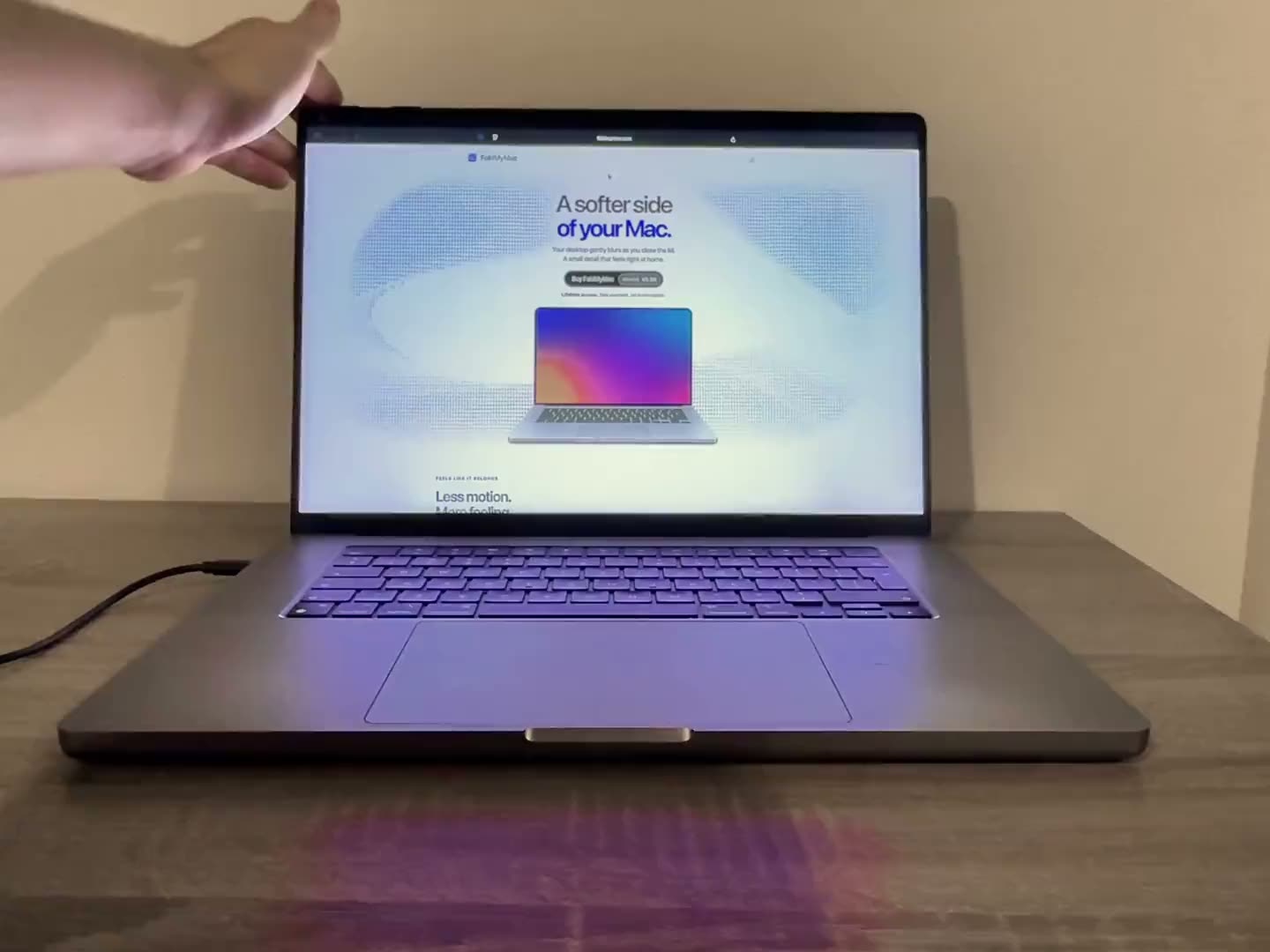
This is the "effects that react to hardware" angle: the input is a physical sensor, not a click or a schedule. The requirements are specific. You need macOS 14 Sonoma or later, an Apple silicon MacBook whose lid-angle sensor apps can read, and Screen Recording permission. The developer tested it on an M5 MacBook Air, and not every model exposes the sensor, so check the compatibility page before buying. External displays stay unchanged. For the technical detail, see how it works. It is sold as a one-time payment with a lifetime licence. The FoldMyMac home page has the details.
Quick comparison
| App | Changes | Cost model | macOS requirement |
|---|---|---|---|
| Plash | Wallpaper (web page) | Free on the App Store, closed source | macOS 26 or later (older releases for earlier macOS) |
| Ice | Menu bar | Free, open source | macOS 14 or later |
| Rectangle | Window layout | Free, paid Pro tier | macOS 10.15 or later |
| FoldMyMac | Desktop motion (lid angle) | One-time payment, lifetime licence | macOS 14 or later, Apple silicon |
What these apps cannot change
macOS protects its core. System Integrity Protection restricts even the root user on protected parts of the system, including /System and the pre-installed apps. Apple says third-party software can write to places such as /Applications, /Library and /usr/local instead.
In practice that means well-behaved customization apps work on top of macOS, using the permissions the system exposes, instead of rewriting it. You should be sceptical of any tool that asks you to turn protections off to apply a theme. A theme that needs that is a bigger trade-off than it first looks.
Hardware sets limits too. An effect driven by a sensor only works on Macs that expose that sensor, which is why FoldMyMac publishes a model-by-model compatibility list.
Permissions to expect
Two permissions come up most often, both under System Settings, Privacy & Security.
- Accessibility lets an app access and control your Mac through accessibility features. Apple's guidance is to grant it only to apps you know and trust. Window managers and menu bar tools typically ask for it.
- Screen & System Audio Recording controls whether an app can capture what is on your screen. Apple notes that anything a third-party app collects is governed by that app's own terms and privacy policy.
FoldMyMac asks for Screen Recording because it folds a live image of your desktop, captured through Apple's ScreenCaptureKit. Despite the permission's name, it does not make a recording: frames stay on your Mac, nothing is saved or uploaded, and no audio is captured. It releases capture once the fold clears. The app's own preview works without the permission.
Whatever the app, ask why it needs each permission and whether the vendor explains it in plain words.
Safe customization checklist
- Back up first. Run a Time Machine backup before installing anything that touches system behavior.
- Use the vendor's own site. Download from the developer, the App Store or an official repository, not a re-upload.
- Read the permission prompt. If an app asks for more than its job needs, skip it.
- Prefer reversible changes. You should be able to quit the app and have things return to normal. Avoid anything that asks you to disable system protections.
- Add one app at a time. If something misbehaves, you will know which one it was.
- Check macOS compatibility after updates. Re-read the vendor's notes when you upgrade macOS.
FAQ
What is the best app to customize the Mac desktop?
There is no single best one, because each app changes a different layer. Use a wallpaper tool for the background, a menu bar manager for the top bar, a window manager for layout and a motion app for effects.
Do Mac customization apps need special permissions?
Often, yes. Accessibility and Screen & System Audio Recording are the common ones. Grant them only to apps you trust, and manage them in System Settings, Privacy & Security.
Can an app change the desktop based on my MacBook's hardware?
Some can. FoldMyMac reads the lid-angle sensor and bends the desktop as the lid closes. It needs macOS 14 or later and a supported Apple silicon MacBook, listed on the compatibility page.
Are customization apps safe?
It depends on the app and the source. Download from the vendor, read the permission prompts and keep a backup. macOS also keeps its protected system areas locked to third-party software.