The most fun things to do on a MacBook are already built into macOS: Hot Corners, slow-motion aerial screen savers, Stage Manager, Desk View, Live Text, dictation, Shortcuts automations and a couple of Terminal commands. None of them needs an install. Menu options move between macOS versions, so if a path below does not match your screen, search System Settings for the feature name.
We checked each feature below against Apple's own support pages in October 2026. Anything we could not confirm there is left out. If you also want playful apps that live in the menu bar, we cover those separately in our guide to fun Mac menu bar apps.
Hot Corners
Hot Corners trigger an action when you move the pointer into a corner of the screen. Open System Settings, click Desktop & Dock, choose Hot Corners, then pick an action for each corner from its pop-up menu and click Done. Apple's examples include Notification Center, Apps and Lock Screen. You can also hold Command, Shift, Option or Control while picking an action, so the corner only fires when you hold that key. By default the bottom-right corner is set to Quick Note, so you may have triggered one already by accident.
Aerial screen savers and wallpapers
macOS includes slow-motion aerial footage. In System Settings, click Wallpaper, then Screen Saver, and choose from Landscape, Cityscape, Underwater and Earth aerials. If a down arrow sits next to an aerial, click it to download it first. Shuffle Aerials rotates through them, and you can set how often. You can also turn on an aerial as your wallpaper, so the same footage plays behind your windows. The screen saver starts when your Mac has been idle for the time you set, and you can start it on demand with a hot corner.
Stage Manager
Stage Manager keeps the app you are using front and centre and lines up recently used apps along the left side. You can arrange, resize and overlap windows, or group several apps together. Turn it on from the Control Center menu in the menu bar, or in System Settings under Desktop & Dock, in the Desktop & Stage Manager section. Apple notes that if it will not switch on, "Displays have separate Spaces" must be enabled in Mission Control settings.
Desk View
Desk View mimics an overhead camera, showing a top-down view of your desk during a video call. It is a Continuity Camera feature: in FaceTime, click the More button and choose Desk View, and in other video apps click the Video button in the menu bar, then the Desk View button. A setup window lets you adjust alignment and zoom. Apple lists a Mac using Continuity Camera with an iPhone 11 or later, excluding iPhone SE and iPhone 16e models, and says some newer built-in cameras support it too. Check Apple's Desk View page for your exact setup. It is a fun way to show a sketch or a recipe live.
Live Text
Live Text lets you select the text in a photo as if it were typed. In Preview, hold the pointer over the text, drag to select it, then Control-click and choose Copy Text. Apple's Preview guide says you can also look up words, translate text where available, search the web for it, and act on phone numbers, email addresses and links that appear in the image. It also works in other apps such as Photos, Safari and Quick Look. Apple notes that Live Text is not available in all regions or languages.
Dictation
Turn on Dictation in System Settings under Keyboard, then start it with the Microphone key, your own shortcut, or Edit > Start Dictation. Speak naturally and the text appears at the cursor. You can say "new line" or "new paragraph", spell out punctuation such as "question mark", and ask for emoji by name, like "heart emoji". On Apple silicon Macs you can keep typing while you dictate. It stops when you press Escape, or after 30 seconds of silence.
Shortcuts automations
In the Shortcuts app, click Edit, then Automation, and choose a trigger. Apple's Mac guide lists Time of Day, Wi-Fi, Bluetooth, Charger, Battery Level, Low Power Mode, App and others. A playful use is a small shortcut that runs when you plug in the charger or open a certain app. Some automations ask for confirmation first, and Apple describes an Allow Running When Locked option in the shortcut's Info settings for ones that should run on their own.
Two Terminal commands
Open Terminal and try these two, both documented in macOS itself.
- say turns text into speech:
say "hello from my MacBook". Runsay -v '?'to list the installed voices, and use-vto pick one. - caffeinate stops the Mac sleeping while a command runs.
caffeinate -dkeeps the display awake, and-tsets a timeout in seconds. Press Control-C to stop it.
The lid-angle sensor
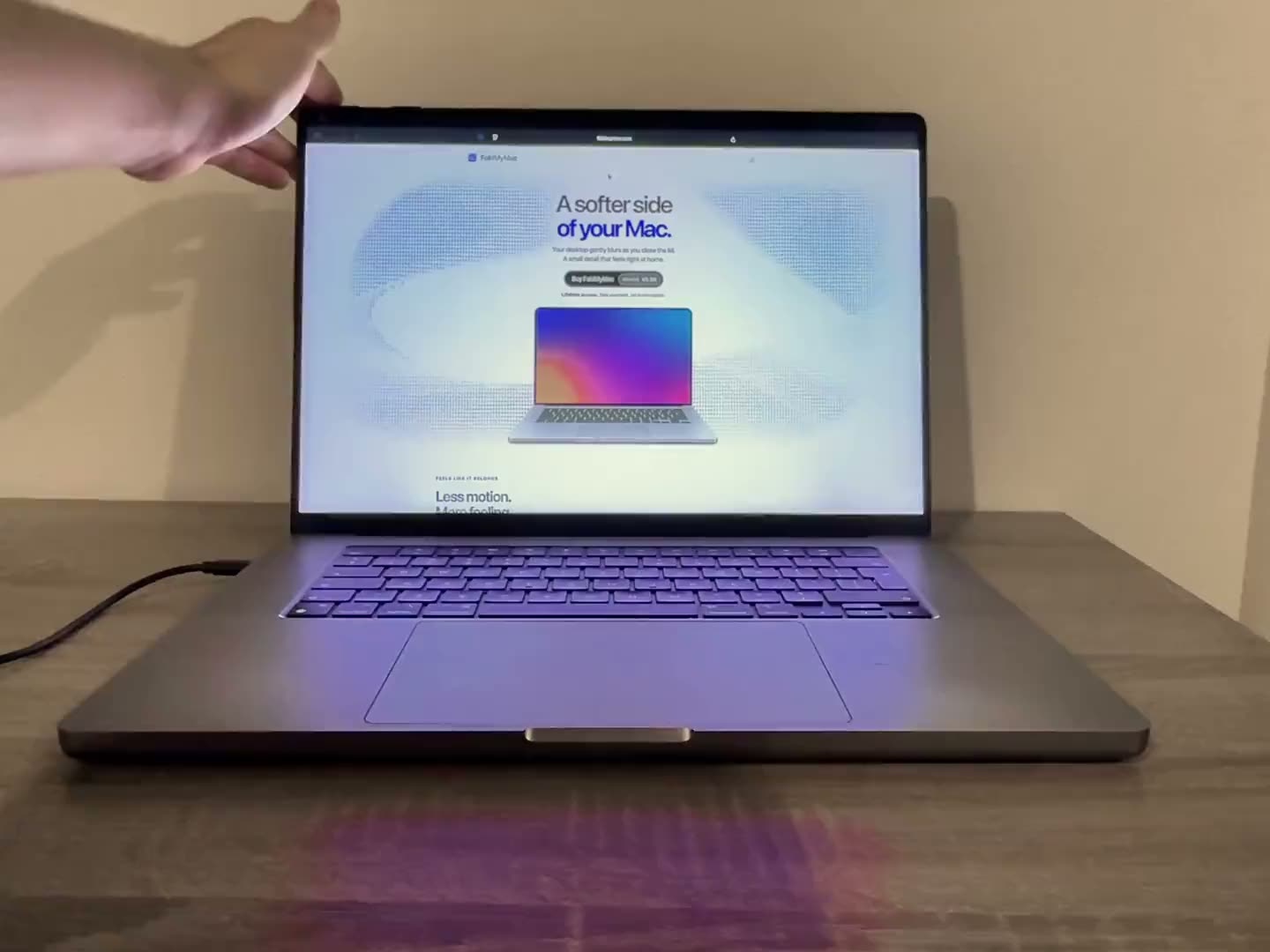
Some MacBooks have a hinge sensor that reports how far the lid is open. macOS does not show the raw angle in System Settings, and Apple has not published an API for it, so it is mostly a curiosity. Apps can read it on supported machines, which is what FoldMyMac does to bend and blur your desktop as you close the lid. If you are curious how the sensor works, read how the lid-angle sensor works, or see whether your Mac is supported.
FAQ
Do these MacBook tricks need extra apps?
No. Every feature in this guide is built into macOS, apart from Desk View, which needs a supported iPhone or a supported camera. Menu items and options can differ slightly between macOS versions.
How do I turn on Hot Corners on a Mac?
Open System Settings, click Desktop & Dock, choose Hot Corners, then pick an action for each corner and click Done. Apple notes that the bottom-right corner is set to Quick Note by default.
What is Desk View on a Mac?
Desk View mimics an overhead camera and shows a top-down view of your desk next to your face during video calls. Apple lists a Mac using Continuity Camera with an iPhone 11 or later, excluding iPhone SE and iPhone 16e models, among the supported setups.
Can I see my MacBook lid angle in macOS?
Not in System Settings. Apple does not show the raw angle anywhere in macOS and has not published an API for it. Some third-party apps, including FoldMyMac, read the sensor on supported Apple silicon MacBooks.